

ALBION FREE MARKET DATA CLIENT
- Learn how to install and use the Albion Free Market (AFM) Data Client, a free, open-source companion app for Albion Online on Windows, Linux, and macOS.
- Leave it running while you play: it uploads market prices, keeps your own prices private if you want, sends your specs to AFM, and saves every session so you can see how it went.
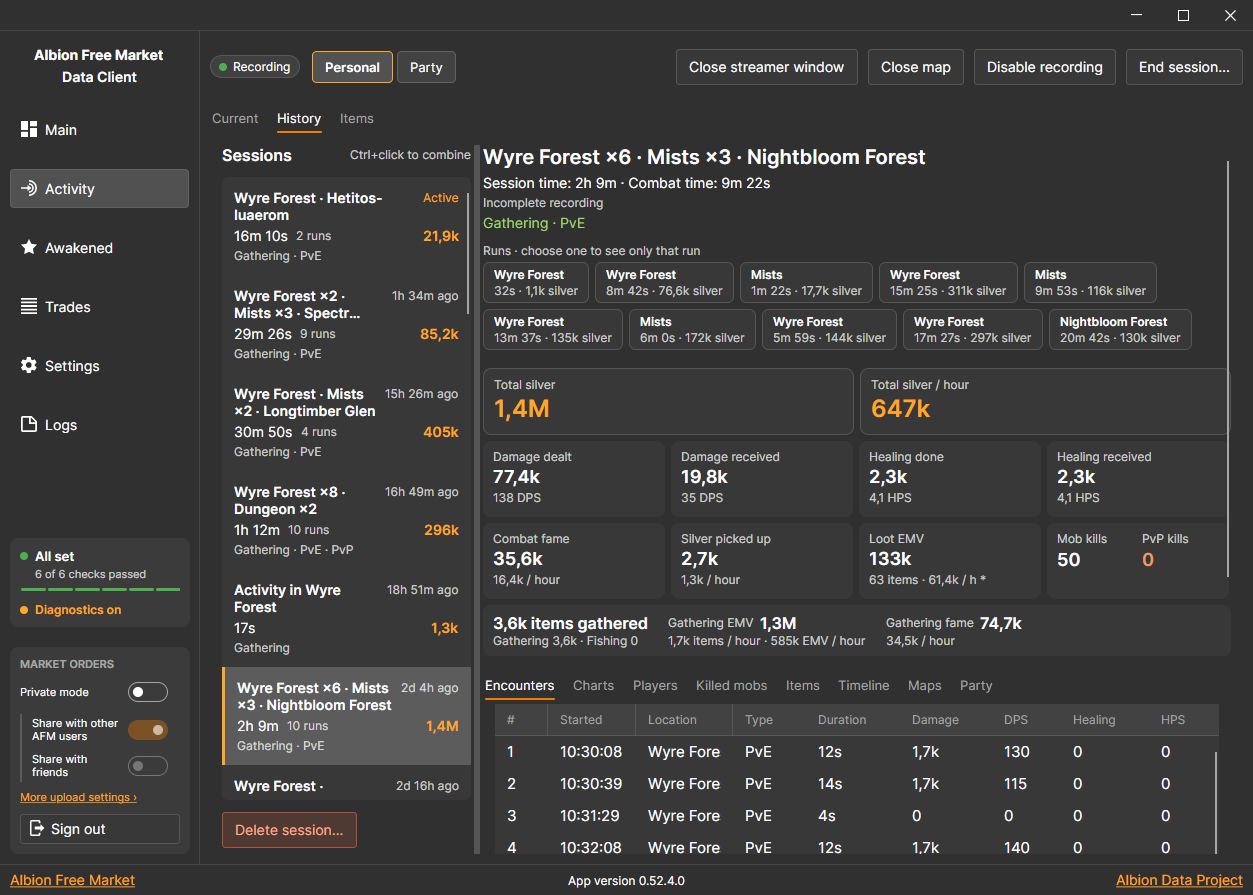
What the Data Client Does
- 📈 Uploads market prices. Buy and sell orders, price histories, and gold prices go to the Albion Online Data Project (AODP), which AFM and many other community tools use.
- 🔐 Keeps your prices private. Private mode sends your scanned orders only to AFM, for your own flips and price tools, shared just with the people you choose.
- 🧙 Uploads your specs. Your character specs go to your AFM account, along with your island plots and Estimated Market Value (EMV) data.
- ⚔️ Tracks every session. Combat, gathering, fishing, loot, and silver are saved into sessions automatically, with charts and totals.
- 🗺️ Maps your runs. A live map follows you through each zone, and any past run can be replayed.
- 🧾 Remembers your trades. Instant trades, completed market orders, and awakened items are kept in a searchable history.
- 🆓 Free and open source. It runs quietly in the system tray, and on Windows it updates itself.
Run only one data client. If you use the AFM Data Client, uninstall the official AODP client, or both will upload the same data twice.
Installation
The client reads the game's network traffic, so it needs a packet capture driver: Npcap or WinPcap on Windows, libpcap on Linux, and a one-time permission on macOS. It runs on anything that runs Albion Online; on macOS it needs macOS 14 or newer.
Windows
- Download the latest
AFMDataClientSetup_v_x.x.x.x.exefrom the GitHub releases page. - Run the installer. If no capture driver is installed yet, it installs WinPcap for you.
- The client opens when setup finishes. It starts with Windows, and closing the window keeps it running in the system tray. Click the tray icon to open it again, or right-click it and choose Exit to quit.
- Updates download and install by themselves.
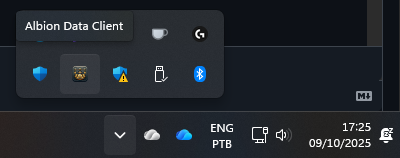
- If the Main tab says the capture driver is missing, click Download Npcap, install Npcap with the default options, and click Check again.
- To uninstall, use Windows Installed apps. The uninstaller asks whether to keep your history and settings.
Linux
Install libpcap first if you don't have it: sudo apt install libpcap0.8 or sudo dnf install libpcap.
Option 1 — One-line installer
curl -s https://api.github.com/repos/JPCodeCraft/AlbionDataAvalonia/releases/latest \
  | jq -r '.assets[] | select(.name == "AFMDataClient_Linux64_Installer.sh") | .browser_download_url' \
  | xargs curl -L -o installer.sh && sed -i 's/\r$//' installer.sh \
  && chmod +x installer.sh && ./installer.sh && rm installer.sh
Option 2 — Manual
- Download
AFMDataClient_Linux64_Installer.shfrom the releases page. - Fix line endings:
sed -i 's/\r$//' AFMDataClient_Linux64_Installer.sh - Make it executable:
chmod +x AFMDataClient_Linux64_Installer.sh - Run it:
./AFMDataClient_Linux64_Installer.sh
The installer gives the client permission to capture packets and adds it to your startup apps.
Uninstalling on Linux
curl -s https://api.github.com/repos/JPCodeCraft/AlbionDataAvalonia/releases/latest \
  | jq -r '.assets[] | select(.name == "AFMDataClient_Linux64_Uninstaller.sh") | .browser_download_url' \
  | xargs curl -L -o uninstaller.sh && sed -i 's/\r$//' uninstaller.sh \
  && chmod +x uninstaller.sh && ./uninstaller.sh && rm uninstaller.sh
Linux builds don't update themselves. Run the installer again to update.
macOS
Download
AFMDataClient_MacOS_arm64.app.zipfor Apple Silicon, orAFMDataClient_MacOS_x64.app.zipfor Intel, from the releases page.The app isn't signed, so macOS may say it is damaged. Open Terminal and remove the download quarantine flag:
cd ~/Downloads
xattr -dr com.apple.quarantine AFMDataClient_MacOS.app
Drag
AFMDataClient_MacOS.appinto Applications and open it.The Main tab shows
Allow packet capture on this Mac. Click Install permissions, approve the administrator prompt, and let the app restart.
On macOS the client tells you when a new version is out, but you download and install updates yourself. The GitHub README has pictures of each step and how to uninstall.
First Start: the Main Tab
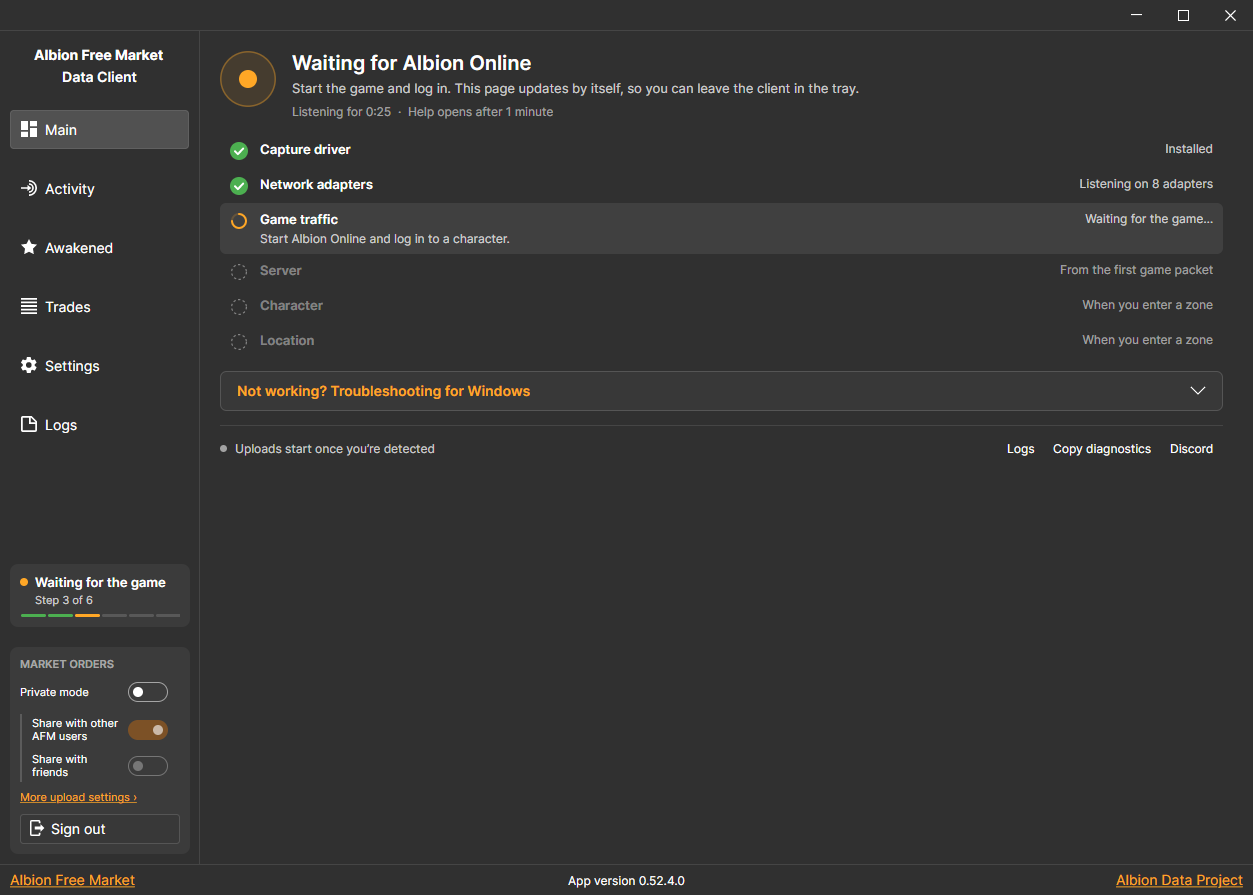
- Open the client and start Albion Online. The Main tab checks each step for you: capture driver, network adapters, game traffic, server, character, and location.
- It updates by itself, so you can leave the client in the tray. Uploads and activity tracking start once your character is detected.
- If a step gets stuck, open Not working? Troubleshooting on the Main tab for steps for your system. Copy diagnostics copies a report you can paste in the AFM Discord.
Signing In and Private Mode
- Everything works without an account, and public uploads to AODP never need one.
- Click Sign in in the sidebar and sign in with Google to also:
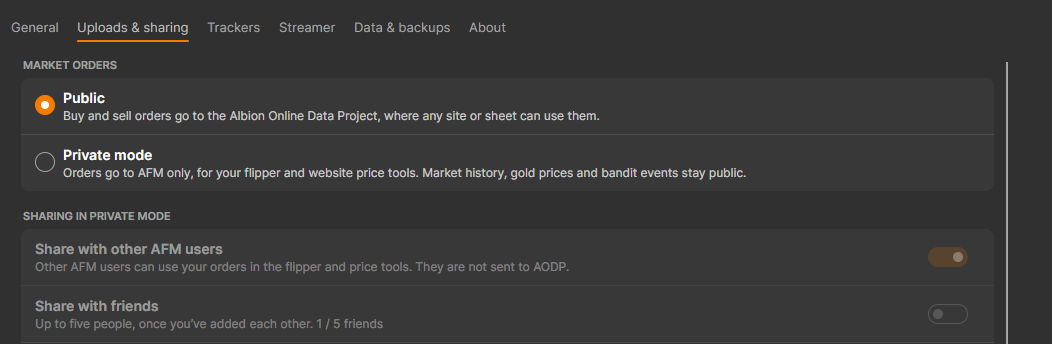
- use Private mode, which sends your buy and sell orders only to AFM for your flipper and website price tools instead of AODP. Market history, gold prices, and bandit events stay public;
- share your private orders with other AFM users, or with up to five friends who add each other in Settings › Uploads & sharing;
- upload your character specs, track your island plots, and look up EMV for items the client hasn't priced yet;
- add trades to your AFM Portfolio and list awakened items for sale.
- The Market orders box in the sidebar switches Private mode and sharing on or off at any time.
Activity
The Activity page records what you do in the game: damage and healing, fame, mob and player kills, gathering and fishing, loot pickups, and silver. It all happens in the background and stays on your computer.
How Sessions Work
- A session starts when you leave a city, Rest, portal town or hideout for the open world, a dungeon or the Mists, or when you press Start session on the Activity page. You don't have to start it yourself.
- Its time runs until you press End session, switch character, turn recording off, or stop moving for 30 minutes.
- Leaving the game or closing the client pauses it, and it continues if you're back within 30 minutes.
- Each dungeon, Mists visit, or stretch of open world is a run inside the session, from when you enter it, and each fight is an encounter. Nothing you do in town, like crafting, farming or trading, starts a session.
- Personal shows only you. Party adds the people in your party.
Current
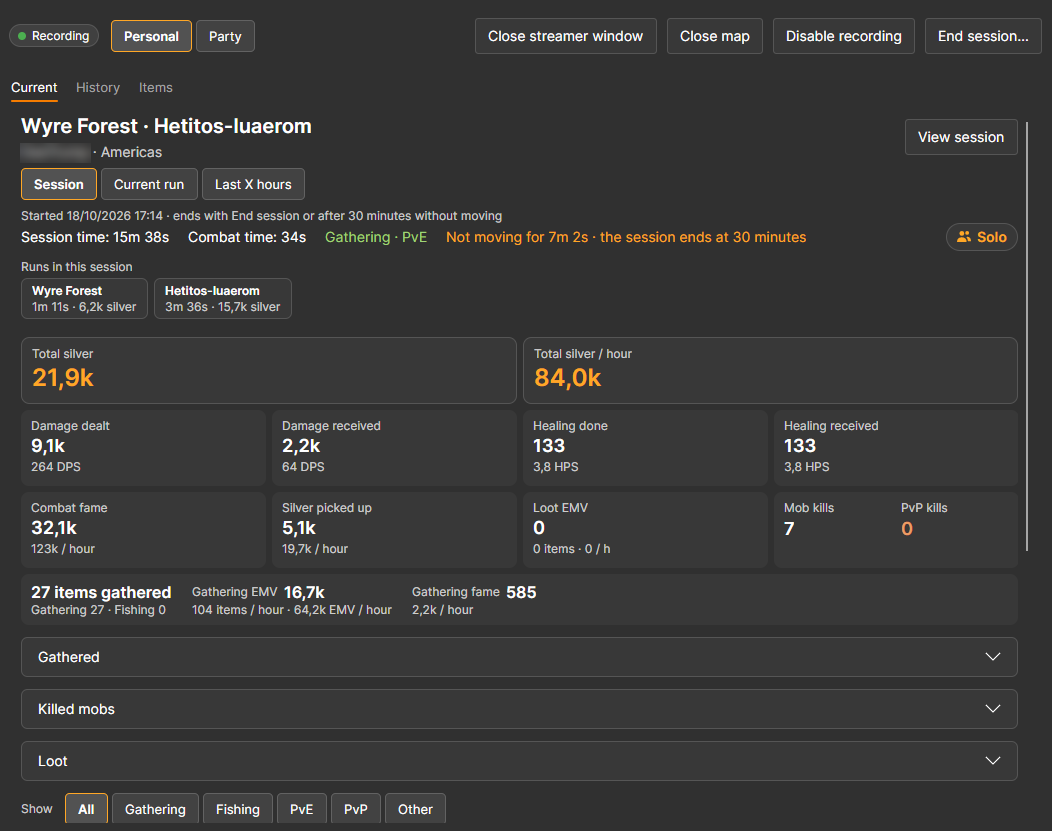
- Current shows the session you're playing right now: total silver and silver per hour, damage and healing with DPS and HPS, combat fame, silver picked up, loot value, kills, and everything you gathered and fished.
- Switch between the whole Session, the Current run, or the Last X hours. A chart at the bottom follows the last 5, 10, or 15 minutes.
History
- History lists every saved session with its zones, length, and silver. Pick one to see the same totals, then choose a run to see only that part.
- Ctrl-click or Shift-click sessions to combine them, and use Delete session… to remove one.
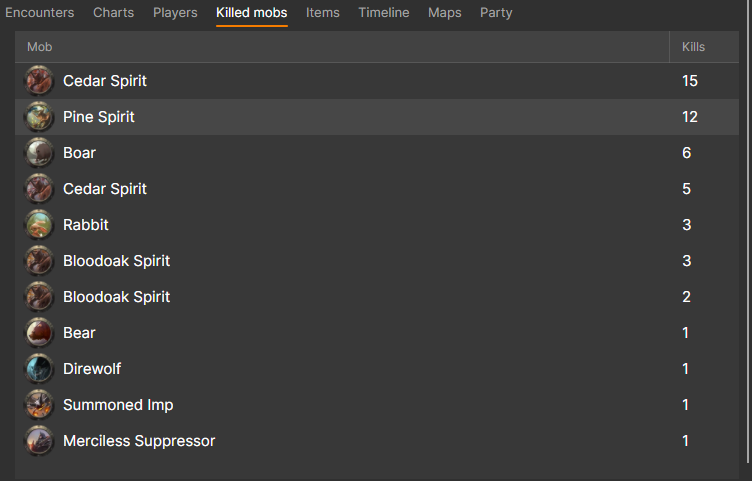
- The tabs below break the session down into encounters, charts, players, killed mobs, items, a timeline, the maps you visited, and your party.
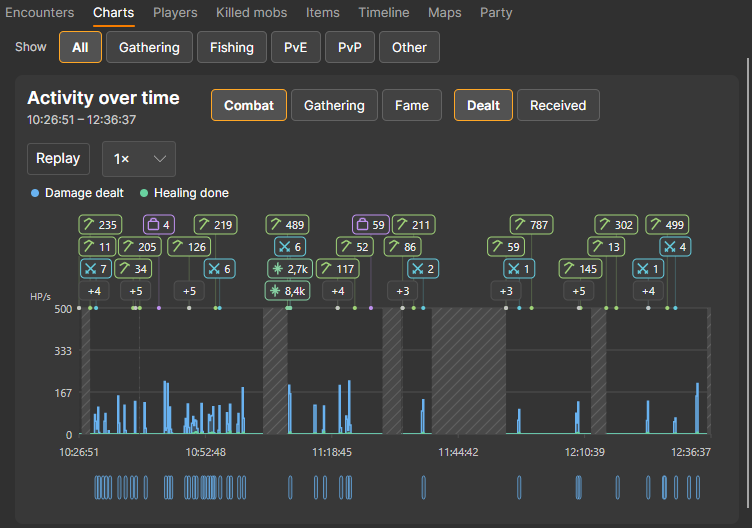
- The chart shows damage or healing over time, with markers for kills, loot, and gathering, and every fight along the bottom. Use Show to filter by gathering, fishing, PvE, or PvP, and Replay to play the session back.
Items
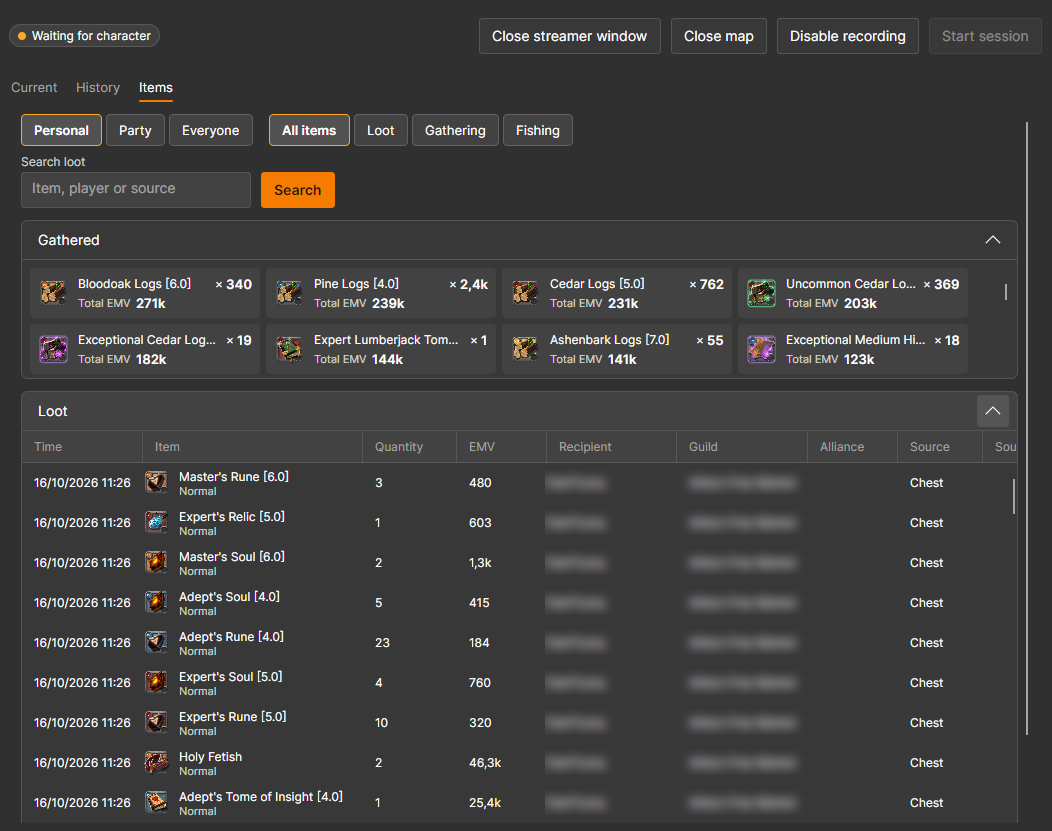
- Items adds up everything you looted and gathered across all your sessions, valued with EMV.
- Search by item, player, or source, filter by loot, gathering, or fishing, and use Export loot… to save the list as a CSV file.
Map
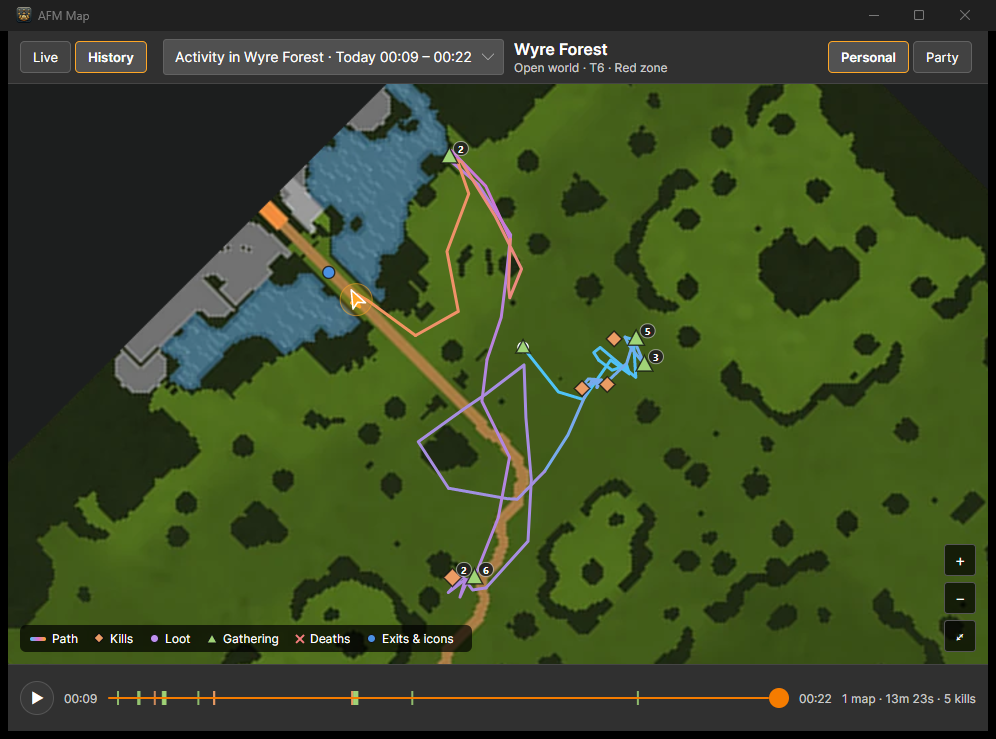
- Click Open map on the Activity page to open the map in its own window.
- Live follows you through the zone and draws your path, kills, loot, gathering, deaths, zone exits, and map icons. Choose whether they fade after 1, 5, or 15 minutes, or never.
- History replays any past run. Pick it from the list and press play, or drag along the timeline.
Streamer Window
- Click Open streamer window for a small window with your current session's numbers that you can capture in OBS or another streaming app.
- Choose what it shows, its size, and a green background for chroma key in Settings › Streamer.
Turning It Off
- Press Disable recording on the Activity page, or turn off Record activity in Settings › Trackers. Your saved history stays readable.
- To free space, delete old sessions in Settings › Data & backups.
Trades
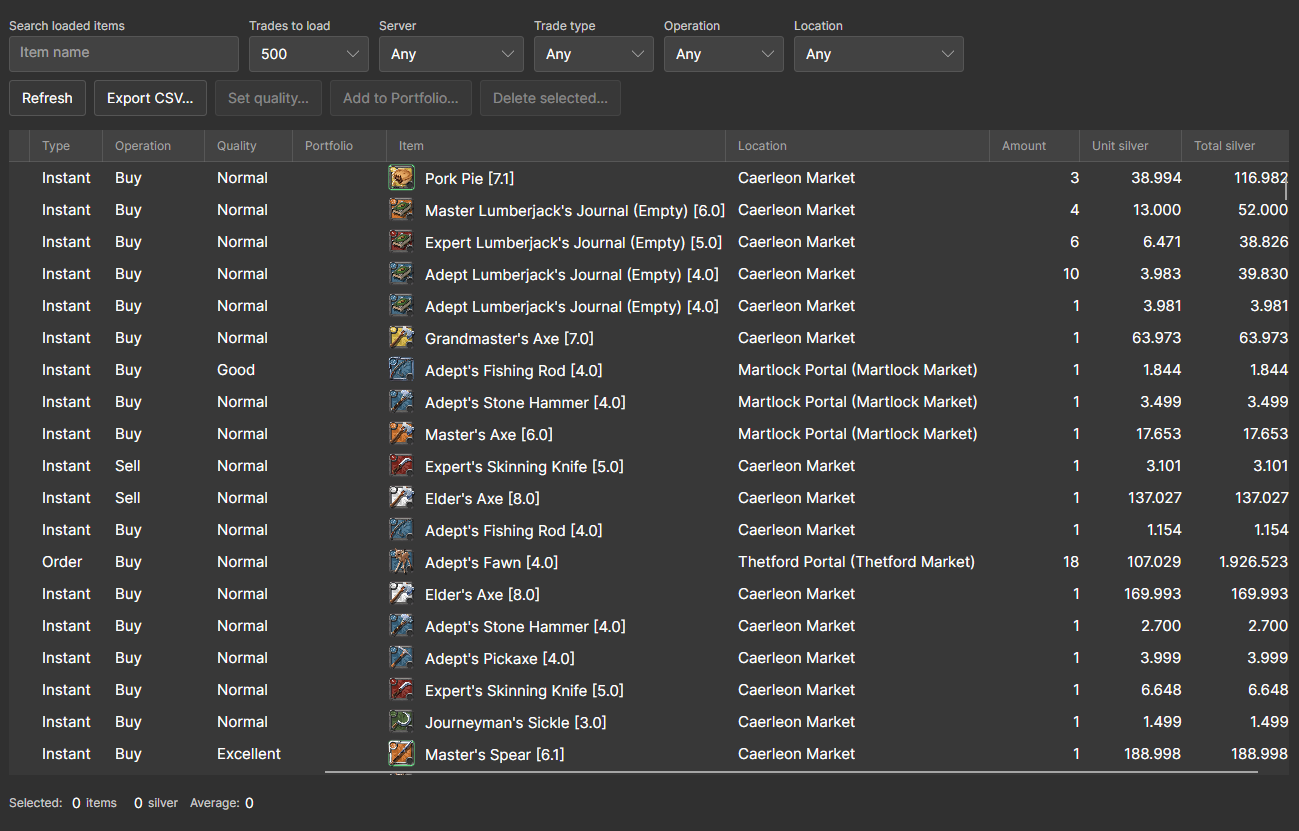
- Trades keeps every instant buy and sell you make at the market, plus completed buy and sell orders read from your market mails.
- Filter by item, server, trade type, operation, and location, select rows to see their total and average price, and export them to CSV.
- Signed-in users can also add trades to their AFM Portfolio.
Awakened Items
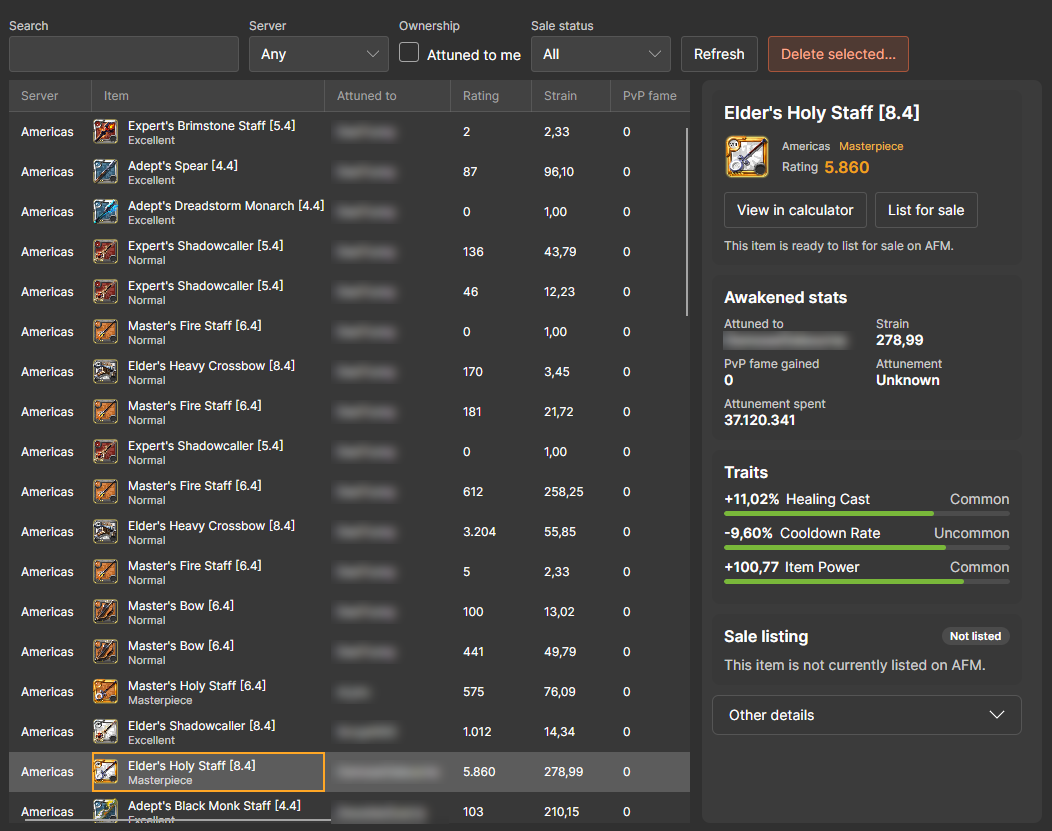
- Awakened saves the awakened items you see in the game, with who they're attuned to, rating, strain, attunement, PvP fame, and traits.
- Open one in the AFM awakened calculator, or, when signed in, list it for sale on AFM.
Settings
- General: the update channel (Stable or Beta), what the window does when the client starts, starting with your system, and whether minimize and close hide it in the tray.
- Uploads & sharing: public or Private mode for market orders, sharing, character specs, the island tracker, and upload speed.
- Trackers: turn activity recording and awakened items on or off.
- Streamer: what the streamer window shows.
- Data & backups: storage used, deleting old history, and automatic backups every 24 hours.
- About: your version, links, and a diagnostics mode for bug reports. Older versions show the update channel here too.
Troubleshooting
The Client Doesn't Detect the Game
- Open Not working? Troubleshooting on the Main tab and follow the steps for your system.
- Ping boosters and VPNs (ExitLag, WTFast, NoPing, and similar) can route game traffic where the client can't see it. Pause them and change zones. In ExitLag, set Packets redirection method to Legacy - NDIS under TOOLS.
- On Windows, reinstall Npcap with the default options. If WinPcap shows up under Installed apps, uninstall it first.
- Restart the client: right-click the tray icon, choose Exit, and open it again.
- Still stuck? Click Copy diagnostics and paste it in the AFM Discord.
Market Orders Are Encrypted
- If the Main tab says Orders encrypted, the game is sending your character encrypted market orders, which is common on new or inactive characters. Gold and price histories still upload, and the rest of the client keeps working, but buy and sell orders can't be uploaded.
- There is no guaranteed fix. Accounts tend to become unencrypted over time with active play, and meeting the verification steps at https://albiononline.com/gold-limits may speed it up.
Updates and Your Data
- Windows updates install by themselves. On Linux and macOS, install new versions yourself. To get beta versions first, choose Beta under Settings › General › Update channel (Settings › About in older versions).
- Your history, settings, and backups live in one folder:
C:\Users\<username>\AppData\Local\AFMDataClienton Windows,~/.local/share/AFMDataClienton Linux, and~/Library/Application Support/AFMDataClienton macOS. Copy that folder to move everything to another computer.
Stay Involved
- Report issues or contribute on the AlbionDataAvalonia GitHub repository.
- Join the AFM Discord to ask questions, share your sessions, and help keep Albion's economy transparent for everyone.